Risk Assessments
Risk assessments are an essential part of what we do in Scouting and serve to protect ourselves as volunteers as well as the young people and adults that we are responsible for looking after.
Please note that while risk assessments can be used for any activities completed within a day, an OSM risk assessment alone is inadequate for overnight events. In this case, an RA form should be completed instead of/as well as an OSM risk assessment on the Scout Membership System.
Creating a Risk Assessment in OSM
Once created, risk assessments in OSM can be easily shared between groups, but you have to know where to look! We have therefore created a repository within the Adults (Executive committee and SAS) section. It would be appreciated if all risk assessments could be written here so that they can be made available to the rest of the group.
Creating a shared risk assessment:
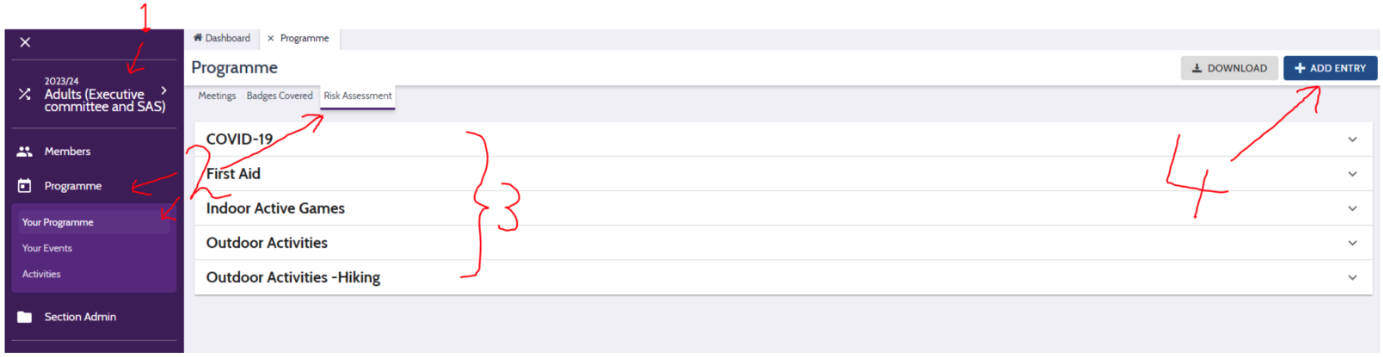
- Navigate to the Adults (Executive committee and SAS) section
- Go to Programme > Your Programme > Risk Assessment
- Check that the risk assessment that you are about to write doesn’t already exist. If it does, you can amend it as you see fit. Generally, it is best not to delete any part of a risk assessment if you are at all unsure, but you may add to it.
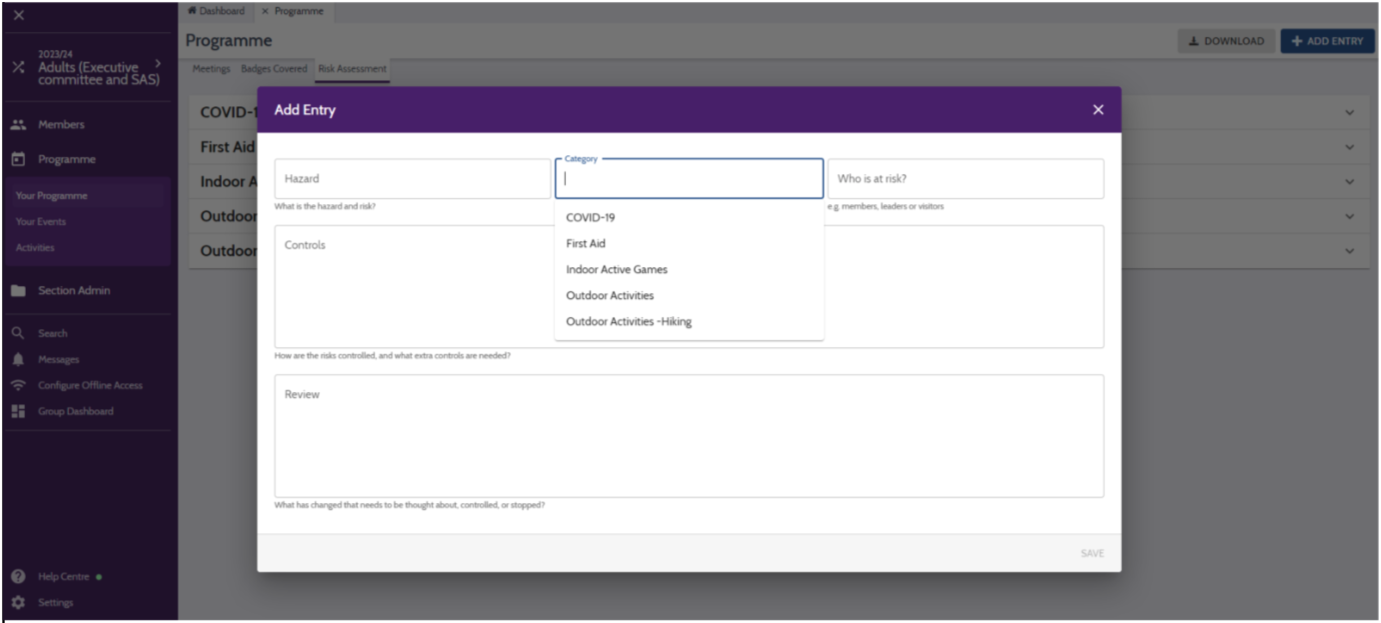
- Click + Add Entry.

- Complete the form as follows:
- Hazard: This is the activity that is causing the potential hazard, such as Hillwalking, London Underground travel, Stove cooking.
- Category: Choose from one of the categories that are already there, or you can type your own (we’d prefer you use an existing one if possible though!)
- Who is at risk?: e.g. members, leaders, visitors, etc.
- Controls: One line per control. E.g. “Have a water bucket to hand before lighting the fire and let everyone know it’s there”. See other risk assessments for inspiration!
- Review: Leaders should complete a review of the risk assessment after the activity to ensure it is still appropriate and comprehensive.
- Save: Click the “Save” button to save your risk assessment.

- Done!
Using a shared risk assessment in OSM
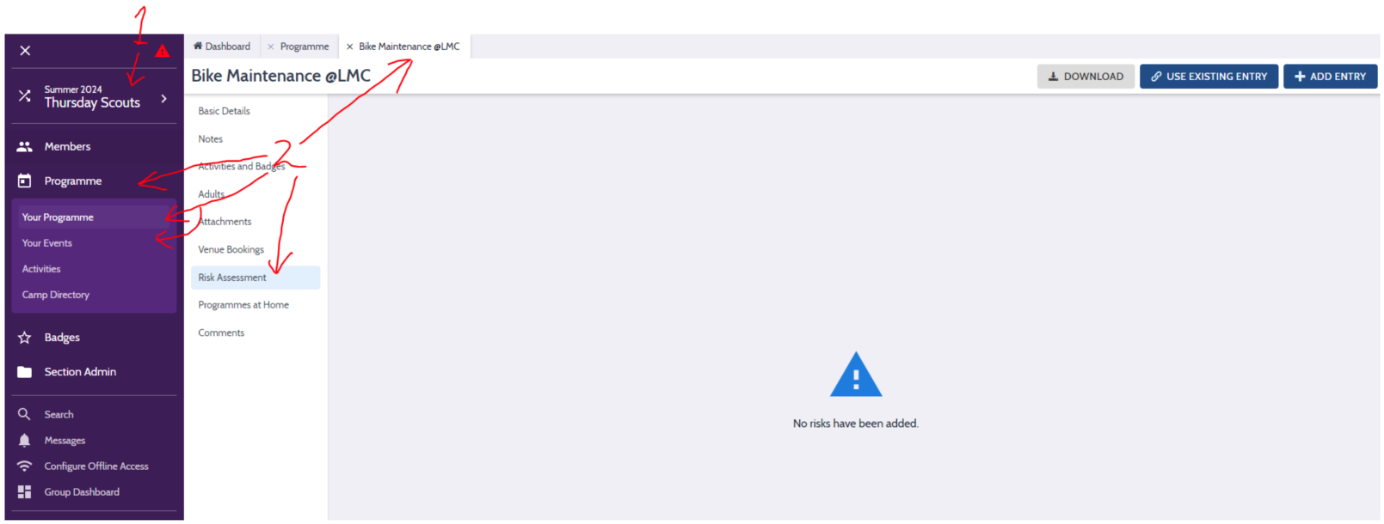
- Navigate to your section (e.g. Monday Beavers, Thursday Cubs, etc.)
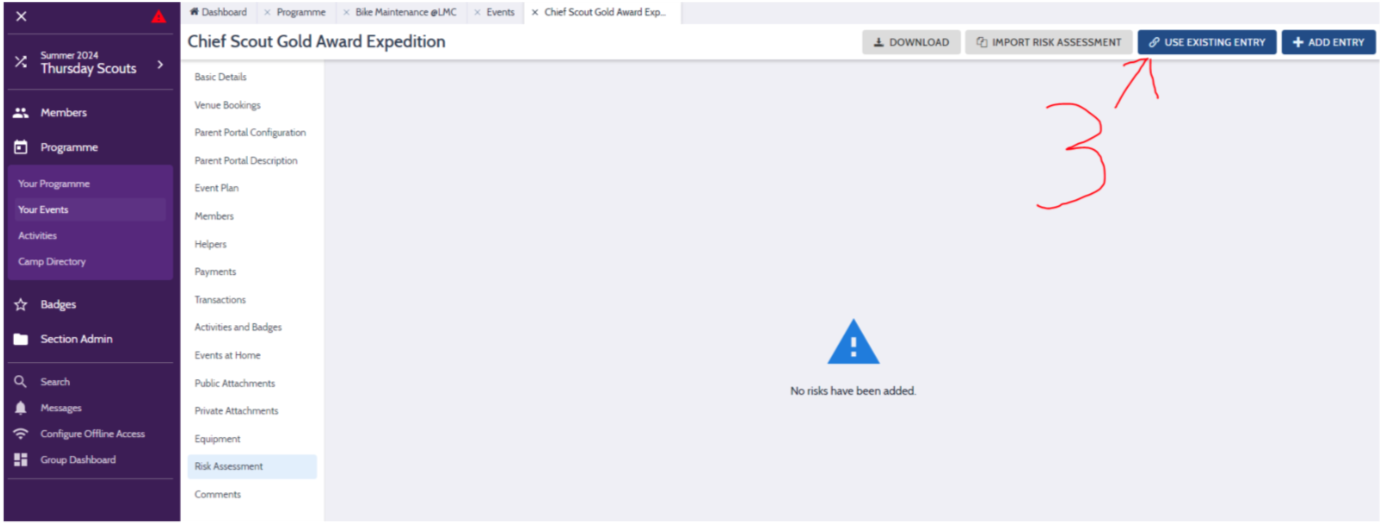
- Go to Programme > Your programme/Your Events > Pick a meeting/event > Risk Assessment.

- Click USE EXISTING ENTRY (or you can add your own entry, but please put it in the adults section as above so that everyone can benefit from it!).

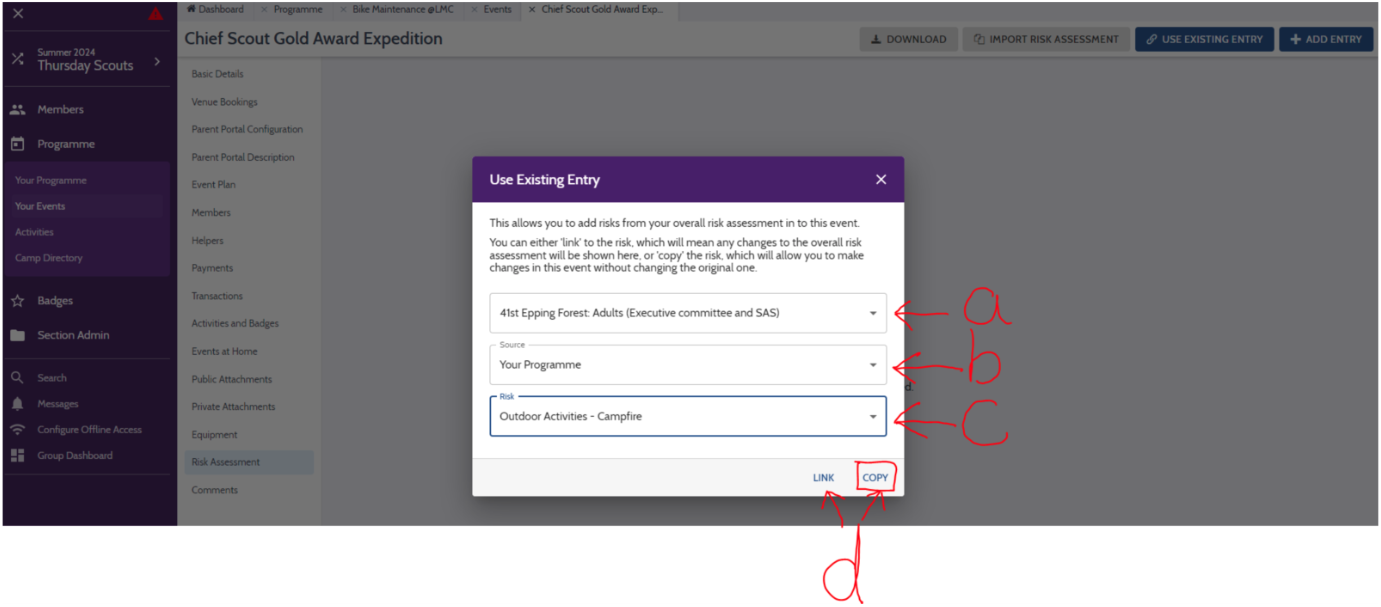
- Pick the assessment that you want to use:
- Choose the section 41st Epping Forest: Adults (Executive committee and SAS)
- Choose Your Programme
- Choose the risk assessment that you want to use (e.g. Outdoor Activities – Campfire).
- Select to LINK or COPY (preferred):
- LINK: This means that you cannot amend the risk assessment within your activity – it must be amended within the adults section/wherever it was linked from. Any changes here will automatically reflect on your activity so this risk assessment will not necessarily be the same some years down the line.
- COPY (preferred): This simply copies the risk assessment from the source/adults section and allows you to edit it as you wish without effecting the origin. This also ensures that no inadvertent changes can be made to the risk assessment without explicitly updating it on your activity.

- Repeat for as many activities as needed.
- Done!